Settle the bill and clear the table
Check a table out, take payment by cash, bank or QR, print the bill, and free the table.
On this page
We’re at Quán Nướng Sài Gòn, the grill house where Tuấn Đỗ works his own floor. Hoa’s table has eaten - two rounds, 880,000 ₫ on one order, as Serve a table left it. This article closes the visit in BANA Sale: checkout, payment, the receipt, and the table going free again.
Before you start
- Signed in to BANA Sale at sale.bana.com.vn.
- The table has an open order with every round on it - see Serve a table.
- The money has somewhere to land. Tuấn keeps a cash drawer, two bank accounts and a VNPAY QR account under Finance → Accounts, which is what gives the till the three ways to be paid you’ll see at checkout - see Create a finance account.
When the guest leaves
Settle the bill
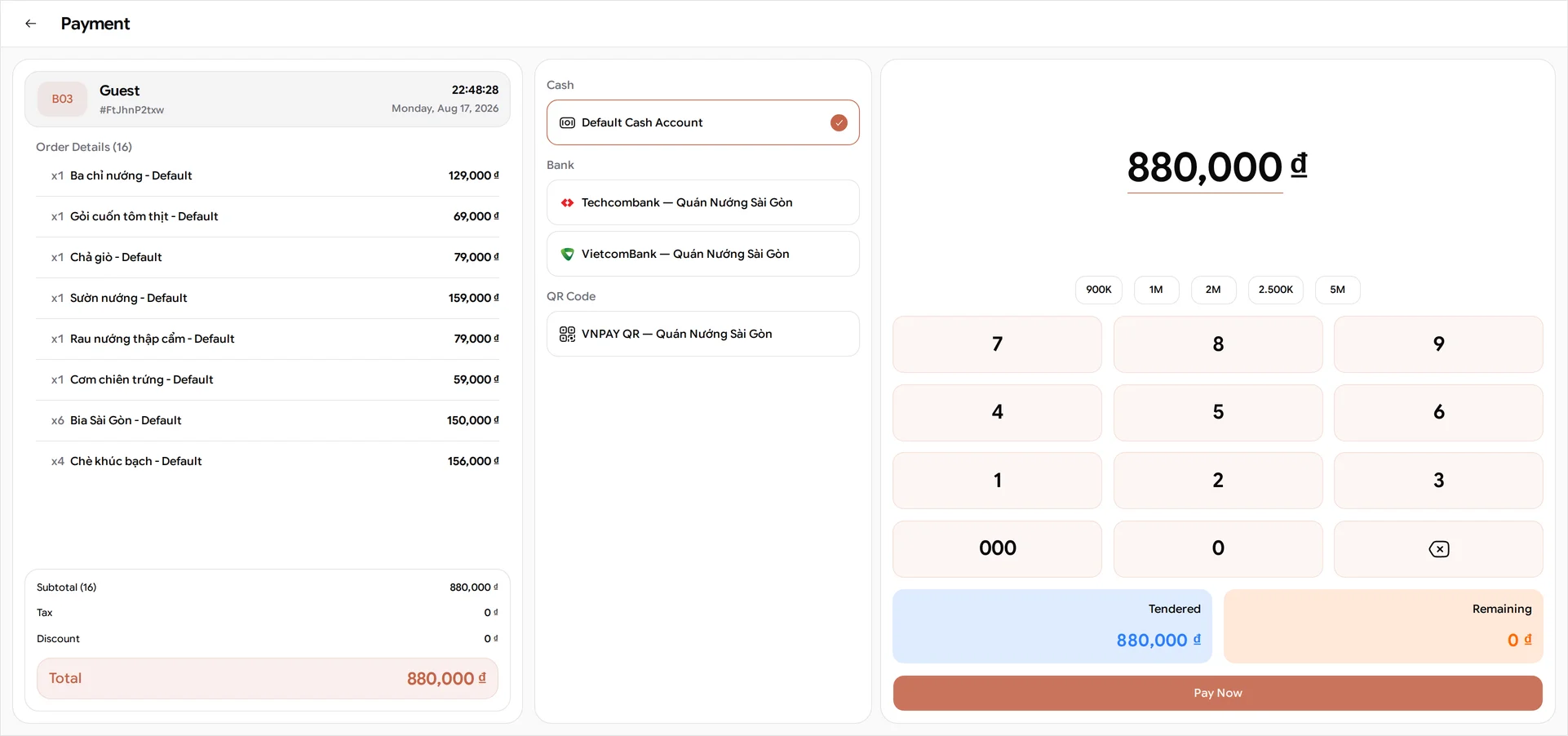
When Hoa asks for the bill, open her order - More Order on B03’s card gets you there - and press Checkout at the bottom of the order panel, under the total. It closes the order - no more rounds after this - and moves to the payment screen with all 880,000 ₫ of both rounds on it. The bill adds identical items up across rounds rather than repeating them, so the four beers from the first round and the two from the second appear once as x6 Bia Sài Gòn at 150,000 ₫ - sixteen items on eight lines.
The tender list is built from your own accounts. It isn’t a fixed menu of payment types: BANA groups your finance accounts by what kind they are, and shows each group with your accounts inside it. Quán Nướng Sài Gòn takes money three ways, so Tuấn’s till offers three groups, always in this order:
| Group | Vietnamese | What the guest is doing | Who confirms it |
|---|---|---|---|
| Cash | Tiền mặt | Paying in notes | You do |
| Bank | Ngân hàng | Transferring into one of your bank accounts | You do |
| QR Code | Mã QR | Scanning a VNPAY QR with their banking app | VNPAY does |
Inside a group your accounts are listed with the default one first, so the account you use most is the one already selected. On Tuấn’s screen that’s his cash drawer under Cash, Techcombank ahead of VietcomBank under Bank, and his VNPAY account under QR Code. A bank row carries that bank’s own logo, so Techcombank is recognisable without reading it.
Cash and Bank are settled by you; QR Code is settled by the provider. That difference is the one worth understanding:
- Cash gives you the keypad and quick-amount buttons. Type what the guest handed over and BANA works the change out - Tendered against Remaining.
- Bank is for a transfer the guest has already made. Check the money is actually in first - your banking app or the bank’s SMS, because BANA has no sight of your bank account and nothing on this screen can confirm it for you - then pick the account it landed in and press Pay Now. Alone among the three it has no countdown: a transfer that takes a few minutes to show up won’t time out on you.
- QR Code puts a VNPAY QR on screen for the guest to scan. BANA waits for VNPAY to confirm rather than asking you to. The code is good for five minutes and can be refreshed if the guest is slow finding their app.
There is a fourth group you won’t see here. Mobile POS / POS di động turns the phone itself into the card reader - tap-to-pay, no separate terminal. It runs on VNPAY’s SDK, which ships only inside the phone app, so it never appears on a till running in a browser and isn’t in the screenshot above.
The tender you wanted isn’t on the screen. A group with no account in it is hidden completely, so this is nearly always an account problem rather than a POS one, and there are exactly three causes:
- No account of that type. Add one under Finance → Accounts and the group appears.
- QR Code has one extra condition: the account must be wired to the sale channel you’re serving on. An account set up against Take away simply won’t offer QR while the till is on Dine-in, even though the account exists.
- Mobile POS needs the VNPAY SDK, which lives on the phone app. It never appears in a desktop browser, as above.
Switching tender restarts the payment. Changing the group or the account throws away the attempt in progress and starts a fresh one. That’s harmless before the guest has done anything. After a QR has been scanned it isn’t: BANA is waiting on that attempt, and switching abandons it, so a guest who pays a moment later pays against an attempt nothing is listening to. Let the scanned one finish, or ask the guest to hold, before you touch the tender.
Once the money is accounted for, select Pay Now.
Paying separately? Use Split Order before you check out, and settle each resulting order on its own. It’s under the ⋮ at the top of the order panel, alongside Move Table.
Clear the table
Pay Now leaves you on a payment-succeeded screen, and everything left to do is on it - printing included.
Print Bill and Kitchen Bill sit side by side at the top. Print Bill is the guest’s copy: it prints the bill and pops the cash drawer in the same action, and the tender you just took is printed on it, so the slip says how it was paid. Kitchen Bill reprints the kitchen ticket, which is the one to reach for when the grill has lost its copy.
Nothing prints and no error appears? The button checks for a configured printer first, and opens a printer picker instead of printing when it doesn’t find one. Choose the printer there and press it again. Printer Setting, lower down the same screen, is where you change that choice later - see Connect printers and devices.
That screen also carries a checkbox: Auto clean table B03, ticked by default. Leave it ticked and Back to Sale frees the table on the way out - it’s Available by the time you land on the map, and the evening’s next booking can have it.
Untick it when the table needs wiping first. B03 then waits at Clean so nobody seats a party at a dirty table - and it waits indefinitely. Nothing releases it on a timer; it goes back to Available only when someone presses Done on the table’s card. A table that has sat on Clean all evening is not stuck, it is simply still dirty as far as BANA knows - which is the state pictured below. Press Done once the table is wiped and B03 goes back to Available, ready for the evening’s next booking.
What’s next
- Look up an order - find the table’s bill again later.
- Add a customer to an order - put a regular’s name on the sale itself.
- Take a reservation - the evening’s next booking, on the table you just freed.
Frequently asked questions
The table wants separate bills.
Use Split Order before you check out, and settle each resulting order on its own. It is under the three-dot menu at the top of the order panel, alongside Move Table. Checkout closes the order, so it cannot be split after that.
I press Print Bill and nothing happens.
The button checks for a configured printer first, and opens a printer picker instead of printing when it does not find one. Choose the printer there and press it again; Printer Setting, lower on the same screen, is where you change that choice later.