Add a customer to an order
Put a name on an order at the till, and keep your customer list tidy from the dashboard.
On this page
Most sales at Cà Phê Sài Gòn are walk-ins, and they need no name. But some do: the regular who comes in every morning, or the company that needs the order on an invoice. Putting a customer on an order takes a few seconds at the till, and everyone you save builds a customer list you can read back in the dashboard.
Before you start
- A device signed in to BANA Sale at sale.bana.com.vn, with an order open - see Make your first sale.
- The customer’s name and phone number. That is all the till asks for; the rest can wait.
Put a name on the order
Add the customer at the till
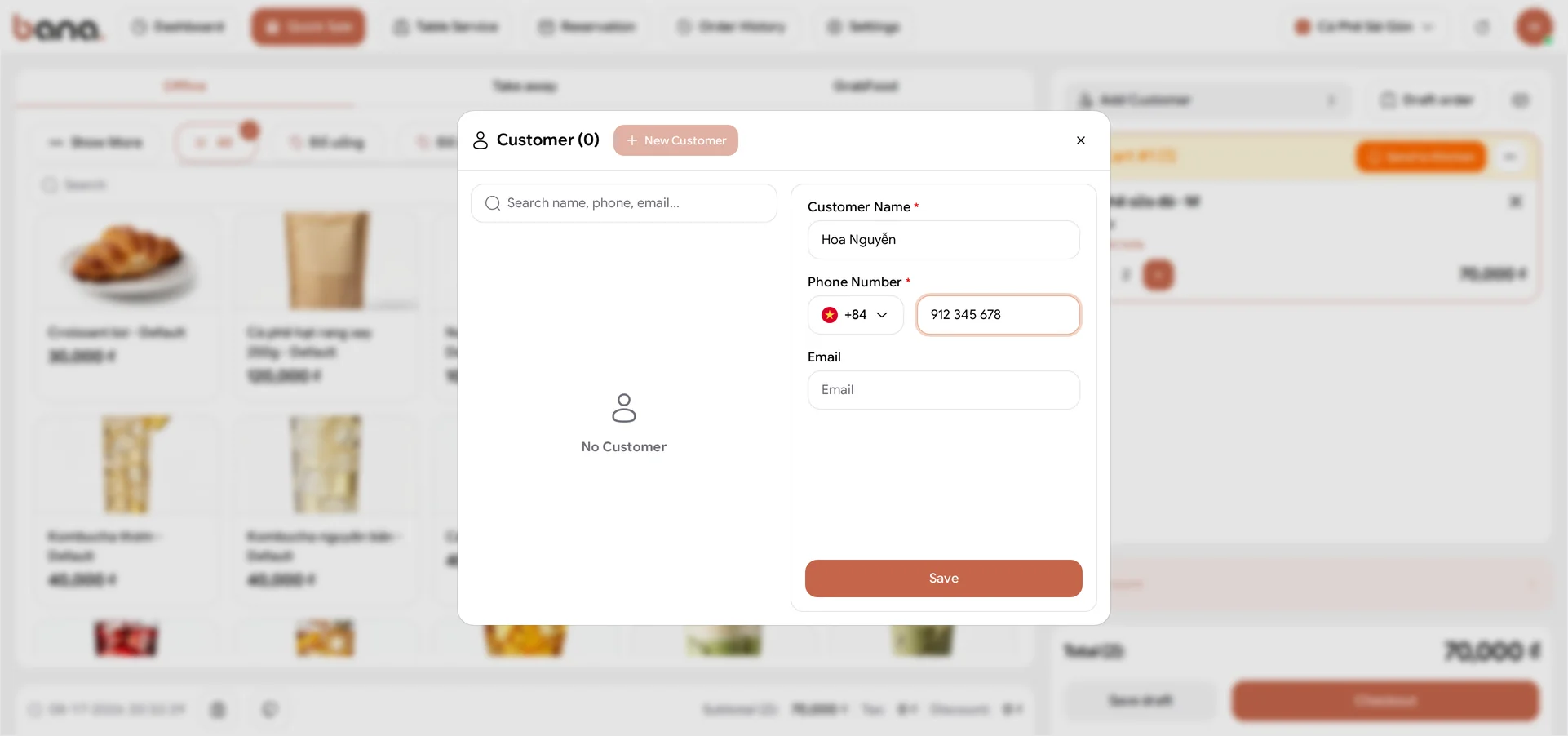
With items in the order, select the customer button at the top of the order panel - it reads Add Customer until someone is chosen. The picker opens headed Customer, with the count of saved customers beside it and a Search name, phone, email… box.
Search first - by name, phone or email. If they’re already saved, select their row and you’re done: that keeps their purchases on one customer instead of splitting them across duplicates. An empty shop shows No Customer here.
If nothing comes up, select + New Customer at the top of the picker, fill in Customer Name and Phone Number, and select Save. Email is optional. Hùng adds the café’s regular, Hoa Nguyễn, on 912 345 678 - the field already carries the +84 country code, so type the number without its leading zero.
Saving only files the customer in the list; it does not put them on the order. Select their row in the list to do that.
Check the name on the order
Once you pick them, the customer button shows their name and a masked phone number - Hoa Nguyễn (091 **** 678) - so the person at the till can confirm they picked the right one without the whole queue reading the number.
Picked the wrong person? Select the customer button again and choose the right row. The order is otherwise unchanged: same items, same total, and Checkout works exactly as before.
Manage the list from the dashboard
Find your customers
Sign in at client.bana.com.vn and open Sale > Sale Customer - the page itself is titled Customers. Every customer your team has saved is here, at full detail: Name, Phone, Email, Point Balance - their loyalty points, 0 for someone new - and Customer type, which reads Personal for the people your cashiers add at the till.
Each row has view, edit and delete actions, so this is where you fix a typo in a name, add an email later, or remove a duplicate.
On a phone: the table keeps its desktop columns, so only Actions and Name fit on screen - scroll it sideways for the phone number and the rest.
Add a company for invoices
A business buyer needs more than a name and a number. Select Create and set Customer Type to Business: the form then asks for a Tax code - enter it and select Check to look the business up - and a Company Name, which is what a VAT invoice is made out to. Customer Name is required too; for a company, putting the company name in both is the simplest thing to do. Minh adds Công ty TNHH ABC on tax code 0301234567.
A business also needs an address: Location takes the street address, and City/Province and Wards/Commune place it. Fill those in once and every future invoice for that company has what it needs - and the company appears in the till’s picker like any other customer, so a cashier can put it on an order the same way.
What you set up
| Customer | Type | Added from | Good for |
|---|---|---|---|
| Hoa Nguyễn | Personal | The till, mid-order | Recognising a regular; receipts in their name |
| Công ty TNHH ABC | Business | The dashboard | VAT invoices, which need the tax code and company name |
What’s next
- Make your first sale - the order these customers sit on.
- View your revenue report - what those orders added up to.
Frequently asked questions
Do I have to add a customer to every sale?
No. Most counter sales are walk-ins and need no name at all. Add one when the customer is a regular you want to recognise, or when the sale needs a receipt or invoice in someone's name.
Why does the till show the phone number with stars in it?
The POS masks the middle digits, so a queue behind the counter cannot read a customer's number off the screen. The full number is visible in the dashboard, where only your team signs in.
The customer is already in the list. Do I add them again?
No. Search their phone number in the picker and select the existing record, so their purchases stay on one customer instead of being split across duplicates.
What is Point Balance in the customer list?
It is the loyalty points that customer has accumulated. A new customer starts at 0.