Set up your store
Select the store BANA created for you, fill in your business details, and learn your way around the dashboard.
On this page
You’ve created your account, so BANA has already set up one store for you - on screen you’ll see it called a merchant, which is the same thing. This article covers the first of the six items BANA tracks for your setup: your store’s identity, the details that print on every receipt. The Settings card on your dashboard counts off the rest.
Before you start
- Sign in at client.bana.com.vn. If you don’t have an account yet, see Create your account.
- Your business name, tax code, and address. These print on receipts and VAT invoices, so have them handy.
- Optional: your logo - a PNG or JPEG under 10 MB, ideally 400×400 px.
Choose your store
Select the store you’ll work in
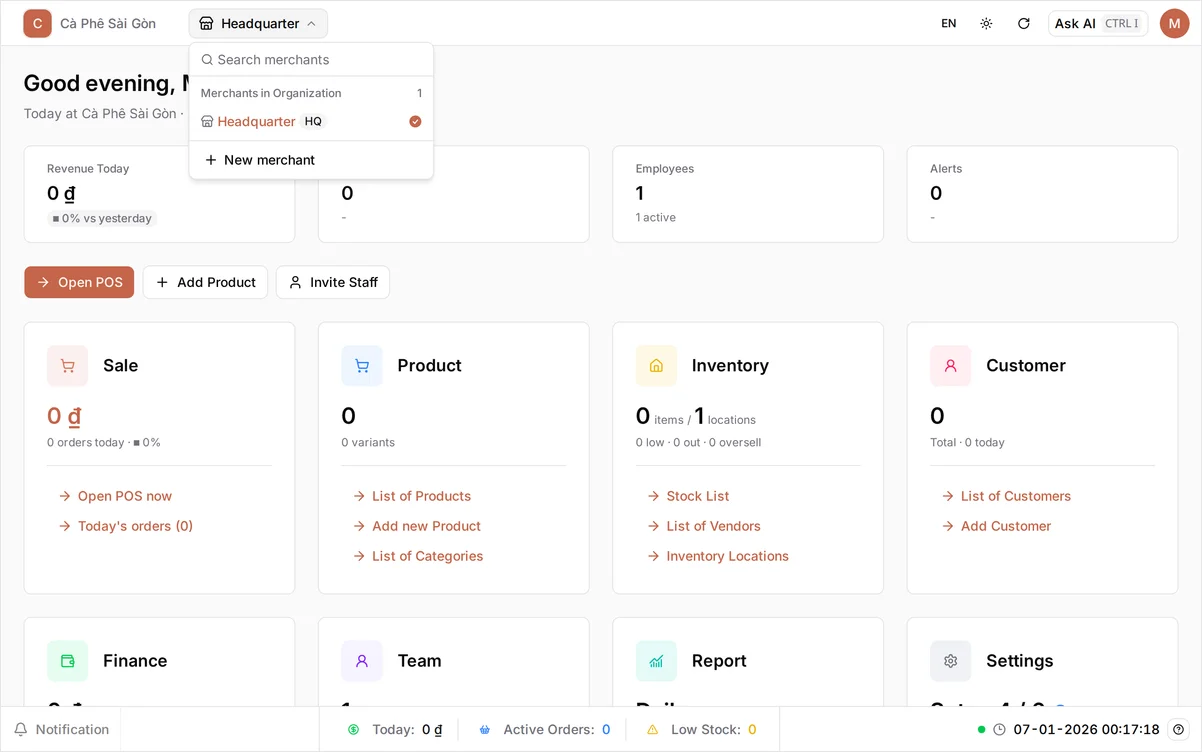
When you signed up, BANA created a default store called Headquarter. At the top of the dashboard, next to your organization name Cà Phê Sài Gòn, is a button showing the store you’re in. Select Headquarter to open the menu.
There’s nothing to change here today - this is just where stores live. Yours is tagged HQ, shows its Food & Beverage industry, and is ticked as the one you’re in. Press Esc (or tap outside) to close it. Everything you create later - products, orders, inventory, reports - belongs to the store selected here, and each store you add with New merchant keeps its own products, stock, and orders.
Fill in your business details
Name your store and add your tax code
From the dashboard, open the Settings card and stay on General. The Merchant Identity card here decides how your store appears to customers and on receipts. This step and the next are the same page, and you save once, at the end.
- Select the logo square (or Replace logo, if one is already there) and choose your file.
- In Tax Code, enter your tax code (
0312987656), then select Check. BANA looks the code up with the tax authority and fills your registered address into the fields below. Do this before typing an address yourself, because Check overwrites those fields. It never touches Name. - In Name, type your business name (
Cà Phê Sài Gòn). This replaces the default Headquarter, which is what receipts print until you change it. The field has a VI / EN toggle: the Vietnamese side is required, and the English side is optional - fill it if you also trade under an English name.
Status stays Activated so the store can trade. Status, Business Type, and Industry all come pre-filled, and the last two are greyed out - they were set when you signed up.
Tip: The blue banner’s Apply Headquarter Setup button overwrites the tax code, business type, and address of the store you’re editing with your main store’s. You’re on that store now, so there’s nothing to copy - ignore it until you add a second location.
On a phone: this page is built for a wide screen - the preview panel is pushed off to the side and the form gets narrow. Use a computer for this step if you have one.
Set your categories and address, then save
Category already holds the starter menu groups BANA created for a café - Coffee, Tea, Pastries, Light Meals, Add-ons. These are the groups your products will slot into. Keep them, select the small x on a chip to drop one you don’t sell, or select Add to create your own.
If Check filled your address in, read it over and correct anything wrong. Otherwise:
- Choose your City/Province (
Thành phố Hồ Chí Minh) - start typing to search. - Choose your Wards/Commune (
Phường Bến Thành). The list only loads once a city is chosen. - In Location, type the street address (
123 Nguyễn Huệ).
Wi-Fi Name and Wi-Fi Password sit below the address. Neither is required - fill them in if you share your shop’s Wi-Fi with customers, or leave them blank.
As you go, watch the Merchant Preview panel on the right - it’s headed What customers will see, and it fills in as you type. When it looks right, select Save in the page’s top bar - the only button there; this page has no cancel. A short Element updated message confirms it; the preview alone is not confirmation.
Below the form, Sale Channels lists where this store sells. BANA set up your first channels at signup, so there’s nothing to do there. To change any of this later, see Update business details.
Find your way around
Read the dashboard home
The dashboard home greets you by name and opens with today’s numbers:
- Revenue Today, Orders, Employees, and Alerts - a quick read across the top.
- Open POS, Add Product, and Invite Staff - quick actions. POS is the till app your cashiers use.
- Sale, Product, Inventory, Customer, Finance, Team, Report, and Settings - one card each, showing that area’s figure and shortcuts into it.
Tip: Scroll to the Settings card to see how far your setup has got. The information icon beside that count opens the full list - merchant info (this article), sale channels, finance account, tax info, product, employee - and each line jumps to the screen that completes it. Use it to track what’s left.
Troubleshooting
- Receipts still say “Headquarter”: you haven’t renamed the store yet. Open Settings → General, set Name to your business name, and select Save.
- Save doesn’t go through: something required is empty. Save is never greyed out, so select it and the page flags what’s missing. The fields you fill are Name (Vietnamese side), Tax Code, City/Province, Wards/Commune, and Location - each carries a red asterisk. A red dot on the VI / EN toggle means your Vietnamese name is blank.
- Nothing seemed to happen when you saved: look for the Element updated message. If it didn’t appear, the save didn’t run - check the fields above.
- Tax Code won’t validate: check that it’s a valid 10-digit number. You can still save a typed tax code without running Check; the lookup only saves you filling the address.
- You can’t find Settings: it’s the Settings card on the dashboard home; once you’re inside settings, General is the first item in the left sidebar.
What’s next
Your store’s details are set and it’s ready to sell from. Now put something on the menu.
Frequently asked questions
Do I have to fill this in before I can sell?
No - your store trades from day one. But the page saves as a whole, so once you start, fill every field marked with a red asterisk before you select Save. Your name and tax code print on receipts and VAT invoices, so it's worth ten minutes now.
I sell from more than one location. Do I set each one up separately?
Yes. Each store keeps its own products, stock, and orders, and you switch between them from the store menu at the top of the dashboard. When you add a second store, Apply Headquarter Setup copies the tax code, business type, and address across so you don't retype them.
Where do these business details actually appear?
On printed and digital receipts, and on VAT invoices. The Merchant Preview panel on the right shows exactly what a customer sees and updates as you type - but seeing it there does not mean it is saved.
Why can't I change Business Type or Industry?
They are fixed when the account is created, because they decide which POS features and starter categories your store gets. They also come pre-filled, so they will never be the reason a save fails. Contact support if you picked the wrong one.