Create a finance account
Add your bank accounts in the Finance app, keep one per place your money sits, and see them become payment options at the POS.
On this page
When Minh ran Cà Phê Sài Gòn on a cash drawer, one pile of money was the whole story. Now customers pay by transfer and QR, and that money lands in his banks - separate piles, and more than one of them. A finance account is a wallet: a running balance for one place your money sits. You keep one account per place, and they do double duty - they’re also the payment options your cashier taps at the POS. This guide adds the café’s three bank accounts, then shows where they appear at the checkout counter.
Before you start
- You’re signed in to the dashboard at client.bana.com.vn as the owner.
- Your shop already has a Default Cash Account and a Default Bank Account - BANA sets these up for every new shop, so you just add a named account for each real bank you use.
- Have your bank details handy: the account number and the registered account holder name for each account.
Add your first bank account
Open the Accounts screen
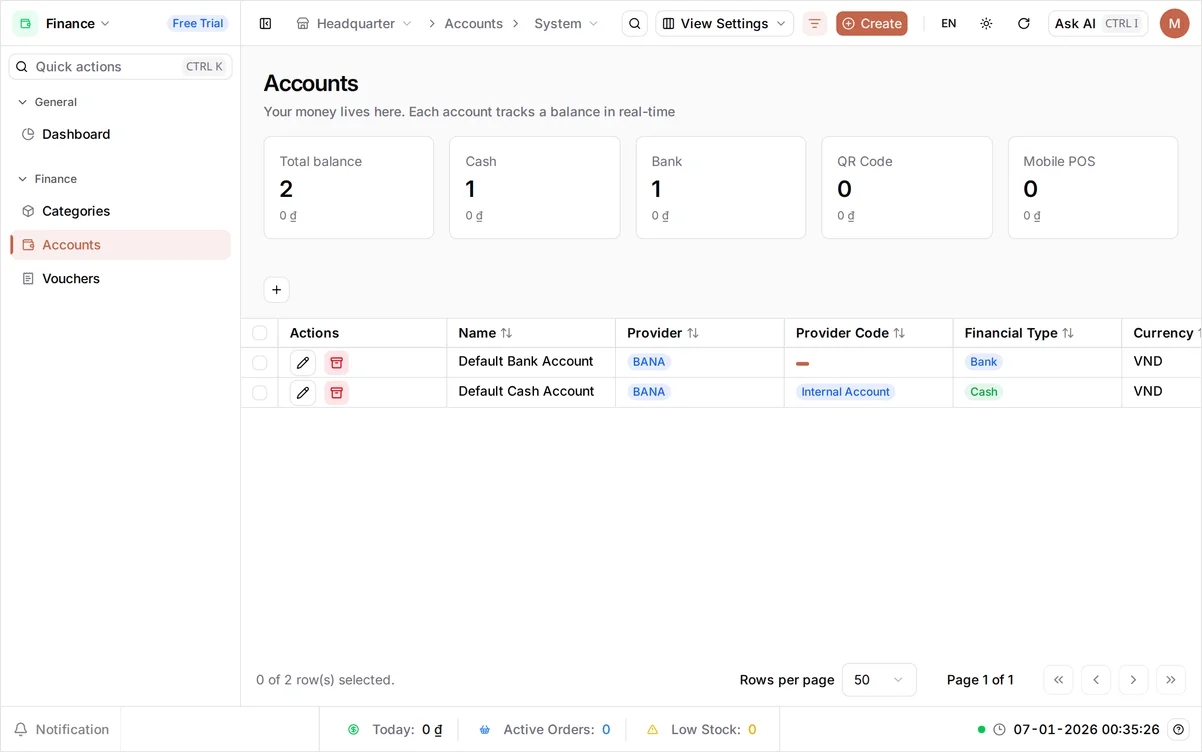
Open Finance from the dashboard, then Accounts. This is where your money lives. Five cards run across the top - Total balance, Cash, Bank, QR Code and Mobile POS - and each one shows how many accounts of that kind you have and what they hold between them. Below the cards sits the list itself, starting with the two accounts BANA creates for every new shop. Select Create.
Choose the account type
Set Financial Type to Bank - this tells BANA what kind of place the money sits in. A Bank field appears: choose your bank, here Techcombank. For Product Code, choose whose name the account is in - Personal Account, Household Account or Business Account. The café’s is in the company’s name, so pick Business Account. The Account Preview panel on the right fills in as you go, so you can see the account taking shape.
Fill in the details and make it your default
Give the account a clear Name like Techcombank — Cà Phê Sài Gòn so you’ll know it at a glance. Leave Currency as VND - Vietnamese Dong. In Initial Balance, enter what the account holds today - 50,000,000 - so the balance is right from day one (for a brand-new account with nothing in it yet, enter 0). Under Bank Details, enter your Account Number and the Account Holder name exactly as the bank has it. Finally, under Account settings, turn on Set as default for this type: most of the café’s transfers land at Techcombank, so this is the bank account the POS should offer first. Select Save.
On a phone: this form keeps its desktop layout, so fields sit two to a row and the Account Preview panel hangs off the right edge. It is far easier to set your accounts up on a laptop.
Add the rest of your accounts
Add your other bank accounts
Most shops keep more than one bank. Repeat the same flow for each: select Create, set Financial Type to Bank, and this time choose BIDV, named BIDV — Cà Phê Sài Gòn, with its own Initial Balance (30,000,000). Then do it once more for VietcomBank - VietcomBank — Cà Phê Sài Gòn, balance 20,000,000. Leave Set as default for this type off on both: each type keeps one default, and Techcombank already holds it.
Tip: A QR or Mobile POS account works the same way - pick the matching Financial Type instead of Bank. Add one for every place your money sits.
Verify in the accounts list
Back on the Finance Accounts screen, your three banks now sit beside the two accounts BANA created, each Activated and carrying its own Current Balance. The Bank card reads 4 - your three plus BANA’s own bank account - and Total balance adds the whole shop up: five accounts holding 100,000,000 ₫ between them.
Where your accounts show up at the POS
Your finance accounts aren’t only for bookkeeping - an account with a real place behind it, like a bank you named, is a way your cashier can take payment. Build them here in the dashboard; the BANA Sale app at the counter reads them at checkout.
See your accounts at the POS
When your cashier rings up a sale and reaches Payment in the BANA Sale app, the ways to pay come straight from this list. Cash holds the Default Cash Account - the drawer - and under Bank all three of your accounts appear by name, the one you set as the default sitting at the top of the group. The Default Bank Account BANA created stays out of it: it has no bank behind it, so it’s a bookkeeping placeholder rather than a way to pay.
POS Desktop: Add an account in the dashboard and it appears here on the next checkout. You don’t set payment methods up twice.
Take a bank payment
To settle a transfer, the cashier picks the account the money landed in - any of the three, here Techcombank - Cà Phê Sài Gòn - and confirms with Pay Now. The sale is recorded against that exact account, so its balance climbs automatically while the others stay put. No double entry, no end-of-day reconciliation by hand.
What you created
Your Finance app now tracks every place your money sits - and most of them are a way to get paid:
| Account | Type | Initial balance | At the POS |
|---|---|---|---|
| Default Cash Account | Cash | 0₫ | Cash |
| Default Bank Account | Bank | 0₫ | Not offered |
| Techcombank - Cà Phê Sài Gòn | Bank | 50,000,000₫ | Bank (default) |
| BIDV - Cà Phê Sài Gòn | Bank | 30,000,000₫ | Bank |
| VietcomBank - Cà Phê Sài Gòn | Bank | 20,000,000₫ | Bank |
Open Finance > Accounts to see all five. Each bank account you added is ready to take payment at the counter.
What’s next
- Set up finance categories so the money you log groups into meaningful totals.
- Then record income and expenses against these accounts.
- See the accounts in action when your cashier makes a sale.
You’re all set - every place your money sits now has a balance you can trust and a spot at the checkout counter.
Frequently asked questions
How many finance accounts can I have?
As many as you need - one for each place your money sits. The cash drawer, every bank account, a QR account. BANA counts them together on the summary cards and keeps each balance on its own.
Why did my new account appear at the POS?
Your finance accounts are the payment options your cashier sees at checkout. Save an account with a real place behind it - the drawer, a named bank - and it becomes a way to pay on the next sale, with the money landing in whichever account the cashier picks.
I have several bank accounts - which one does the POS use?
The one you mark with Set as default for this type sits at the top of its group, but the cashier can pick any of them at checkout. You can move the default to another account any time by editing it.
What does Initial Balance do?
It tells BANA how much is already in the account on the day you add it, so the balance is right from the start. Enter what the account holds today - zero only if the account really is empty.