Turn on Allow Oversell
Let an existing product keep selling at a stock of zero, for the made-to-order items you never count.
On this page
Allow Oversell lets a product keep selling when its stock reaches zero. It’s what every made-to-order item needs, and it’s easy to miss while creating a product - the tickbox sits off to the right of a grid you have to scroll sideways. If a drink or a bánh mì you make to order won’t ring up at the till, this is the first thing to check.
Once the product is saved you can’t tick it there any more. This guide switches it on where it now lives: the stock list.
Before you start
- You’re signed in to the dashboard at client.bana.com.vn as the owner.
- The product exists and is Storable. Only stock-tracked products can be blocked by stock in the first place - a Service or a Combo is never stock-checked, so it has no oversell setting and doesn’t need one.
Which items should have it: anything you make on the spot and never count - coffee, tea, bánh mì. For things you restock and could genuinely run out of, like bottled water, type a real On hand figure instead. Overselling a countable item just hides the fact that you’ve run out.
Switch it on
Open the item in the stock list
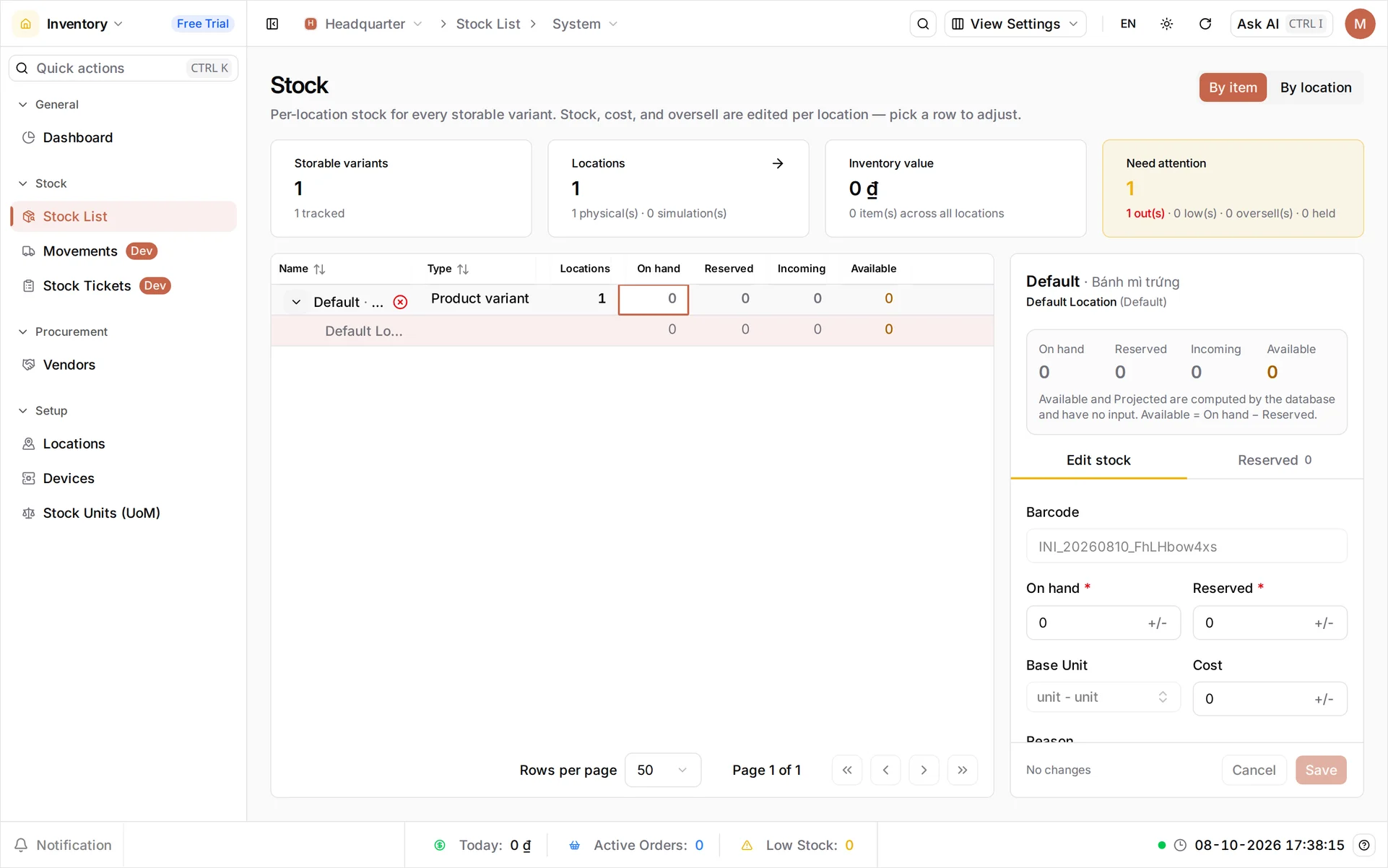
In the Inventory app, go to Stock > Stock List. The Stock screen opens on By item, listing every storable variant with its On hand, Reserved, Available and Value. Find Bánh mì trứng - an item that has never been counted reads 0 across the row.
Select the row. The panel on the right becomes the editor for that item, which names the location it is editing - Default Location (Default) on a single-site shop.
Note: the setting is called Allow Oversell on the product form and Allow oversell here. Same thing, two screens.
Switch on Allow oversell
In the panel, switch on Allow oversell - Continue selling when stock reaches 0 at this location.
Leave On hand exactly as it is. You are not claiming to have any; you’re telling the till to stop asking. Reason is optional, and left blank the ledger records Correction.
Select Save.
Check which location you just changed
Overselling is stored against the stock record for one location, not against the product. The panel names the location it is editing directly under the item - Default Location (Default) if you’ve only ever had one - and the table’s Locations column says how many that item is stocked at.
While that column reads 1, you’re done. When it reads more, select each location’s line in turn and switch Allow oversell on for each: a branch whose switch is still off keeps refusing the item, which is the usual reason this looks like it “didn’t work”.
Note: adding a storage location under Inventory → Locations does not by itself put the item there. An item gains a stock record at a location once it actually holds stock there, and only then does that location appear as its own line to switch.
Verify at the POS
Open BANA Sale at sale.bana.com.vn and find the item’s card. It is no longer greyed out, no longer reads Out of Stock, and shows no Stock badge at all - with oversell on, the till stops looking at that number. Tap it and it drops into the order at its price, with the count still sitting at zero.
If the POS was already open, reopen the sale screen first - it loads the product list at that moment, so a change made mid-shift won’t be picked up until it does.
What you changed
| Item | On hand | Allow oversell | Sells at zero? |
|---|---|---|---|
| Bánh mì trứng | 0 - unchanged | On | Yes |
Nothing about the count changed. The only difference is that the till no longer treats zero as a reason to stop.
Troubleshooting
- The switch is greyed out on the product form: that’s the read-only copy. Change it in the stock list, as above.
- You switched it on and the till still refuses: either another location still has it off, or the POS hasn’t reloaded its product list.
- It won’t switch off again: you can’t disable it while the item is oversold. Bring On hand back to zero or above first.
- The item isn’t in the stock list at all: only Storable products appear there. A Service or Combo has no stock record, and needs no oversell - if that item is being refused, stock isn’t the cause.
What’s next
- Count the things you really do count - track stock and storage locations.
- Get it right at creation next time - add your first product.
One switch, per location, and your made-to-order items sell all day at a count of zero.
Frequently asked questions
Why isn't Allow Oversell on the product form any more?
It only accepts typing while a variant row is new. Once the product is saved, overselling belongs to the stock record for a location rather than to the product, so it moves to the stock list. The tickbox on the product form is still visible but read-only.
Does turning this on change my stock figure?
No. The count stays exactly where it is, usually zero. All you change is whether the till is willing to sell when the count runs out.
I have two branches. Do I have to do this twice?
Yes. Overselling is stored per location, so each location the item is stocked at needs its own switch. The edit panel names the location it is editing just under the item name, so you can always see which one you are changing.
Should I use this instead of counting stock?
Only for things you genuinely never count, like drinks made to order. For anything you restock and could run out of, a real On hand figure is better - it keeps your reports honest and warns you when the item is running low.
Can I turn it off again?
Yes, but not while the item is already oversold. If Available has gone negative, bring the count back to zero or above first, then switch it off.