Customize POS appearance
Pick the accent colour your BANA Sale app wears, and see how it reads in both light and dark before you save it.
On this page
Your staff look at the BANA Sale app all day, and customers see it over the counter. Appearance POS lets you set the one colour it is built around, so the till looks like your shop rather than like a demo.
It is a small setting with a wide reach: the colour belongs to your whole business, so every store and every till picks it up. Minh sets it once for Cà Phê Sài Gòn and both his shops match.
Before you start
- You are signed in to your headquarter store. This page only appears there, because the setting covers every store at once.
- Owner access.
- A colour in mind. Only the twelve on this page are available - there is no colour code to type in, so pick the closest one to your branding.
Set the colour
Open Settings → Appearance POS
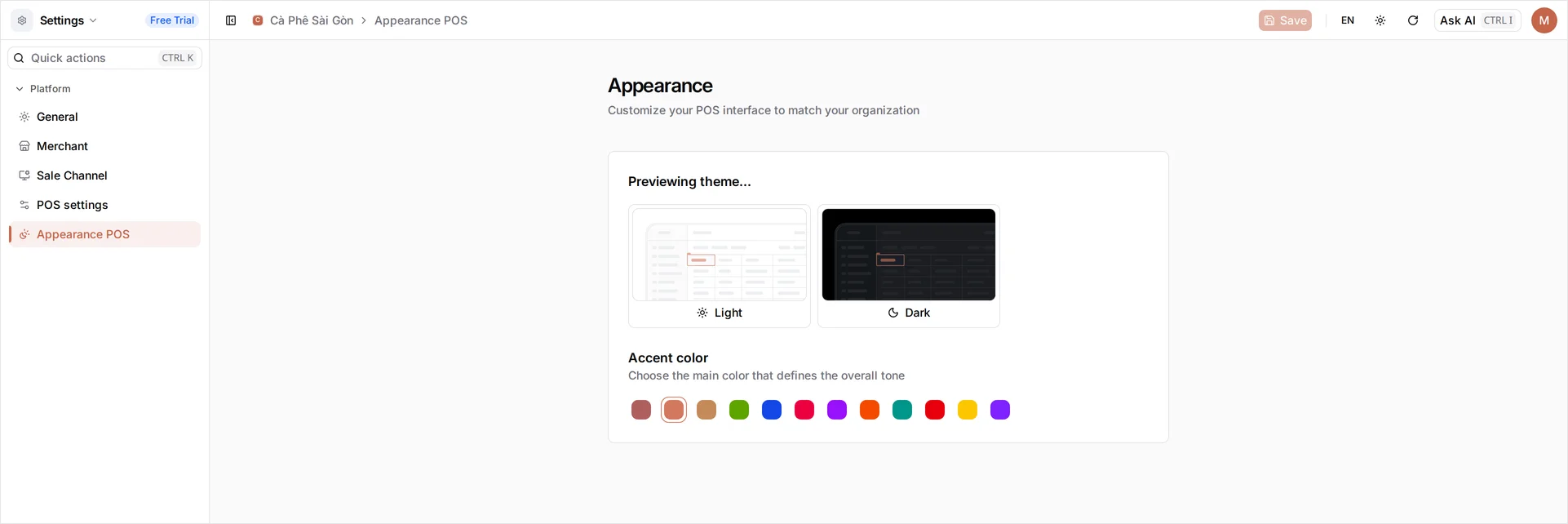
Sign in at client.bana.com.vn, then open Settings and Appearance POS. The page is titled Appearance - “customize your POS interface to match your organization” - and holds a single card.
At the top sit two panels, Light and Dark, showing a miniature of the POS screen. They are a preview, not a choice. They exist so you can see how a colour reads on a bright screen and a dim one before you commit; the POS itself follows whatever the device it runs on is set to. A new business starts on Ember.
Choose your accent colour
Below the preview, Accent color - “choose the main color that defines the overall tone” - is a row of swatches. Select one and it is ringed to show it is the active choice, and the two panels above redraw in it. Nothing has reached the till yet: the choice is only staged until you save. Cà Phê Sài Gòn goes with Teal.
Hover a swatch for its name - that tooltip is the only place the names appear, so on a phone or tablet you are choosing by eye. The twelve run left to right in this order, wrapping onto a second row on a narrow screen: Sage, Ember, Amber, Green, Blue, Rose, Purple, Orange, Teal, Red, Yellow and Violet. Counting along the row is the only way to land on a specific colour from a touch screen - Teal is the ninth.
Tip: This colour carries meaning at the till, not just style - it is what BANA uses for the buttons a cashier reaches for mid-queue. Pick one with real contrast against both a white and a black background, which is exactly what the two panels above let you check.
Check both looks, then save
Watch the Light and Dark panels as you choose: both redraw in the new colour immediately. If it looks washed out in one of them, try a neighbour - a colour that disappears on a dark screen will disappear at a dim counter too.
When you are happy, select Save in the top bar. Nothing changes at the counter until you do - leave the page without saving and the colour goes back to what it was.
The POS reads this setting once, as it starts up. So a till that is already open keeps the old colour however long it stays open: your cashiers pick up the new one the next time they open sale.bana.com.vn, which for most shops means the next morning. Nobody has to be interrupted mid-order - but if you want it at the counter today, tell staff to finish the order in hand and reopen the app.
Troubleshooting
- There is no Appearance POS item in the sidebar: you are inside a branch store, or you are not an owner. Switch back to your headquarter using the store name at the top of the page; if it is still missing, ask an owner to make the change.
- The colour has not reached the till: the POS reads the setting only as it starts, so a till that was already open when you saved is still showing the old colour. Have the cashier finish the order in hand and reopen the app.
- The colour went back to what it was: the choice is staged until you save. Selecting a swatch rings it and redraws the previews, but leaving the page without Save discards it.
- My dashboard looks the same: it should. This page sets the POS colour; your own dashboard’s light or dark look is a personal setting in your account.
- I want an exact brand colour: you cannot enter one. Pick the nearest swatch - your logo, which does carry your exact colours, appears on receipts instead.
What’s next
The till looks the part. Now make sure it works the part:
Frequently asked questions
Does this change how my dashboard looks?
No. This page sets the accent colour for the BANA Sale app your staff use at the till. The light or dark look of your own dashboard is a personal preference, set in your account settings, and nobody else sees it.
Can each store have its own colour?
No. The accent colour belongs to your whole business, so every store and every till you run picks up the same one. That is deliberate - it keeps one brand across the counter no matter which shop a customer walks into.
Do I choose light or dark here?
No. The two panels are a preview, not a choice - they show how your colour reads on a light screen and a dark one. The POS follows the device it is running on.
What are the colours called?
Hover a swatch and its name appears - Sage, Ember, Amber, Green, Blue, Rose, Purple, Orange, Teal, Red, Yellow and Violet. A new business starts on Ember.