Manage your prices
Where your product prices live in BANA, how to change one after a product is saved, and the tools that build on top.
On this page
Every product you add starts with a price - but where you change it shifts once the product is saved. This guide shows where prices live in BANA, how to change one, and the two tools that build on top: a different price per channel, and tax.
How a price works in BANA
When you add a product, you type a selling price on each variant - so Cà Phê Sài Gòn’s Cà phê sữa đá is 29,000, 35,000, and 39,000 for sizes S, M, and L. That’s the variant’s base price. (If you’re still building the menu, start with Add your first product.)
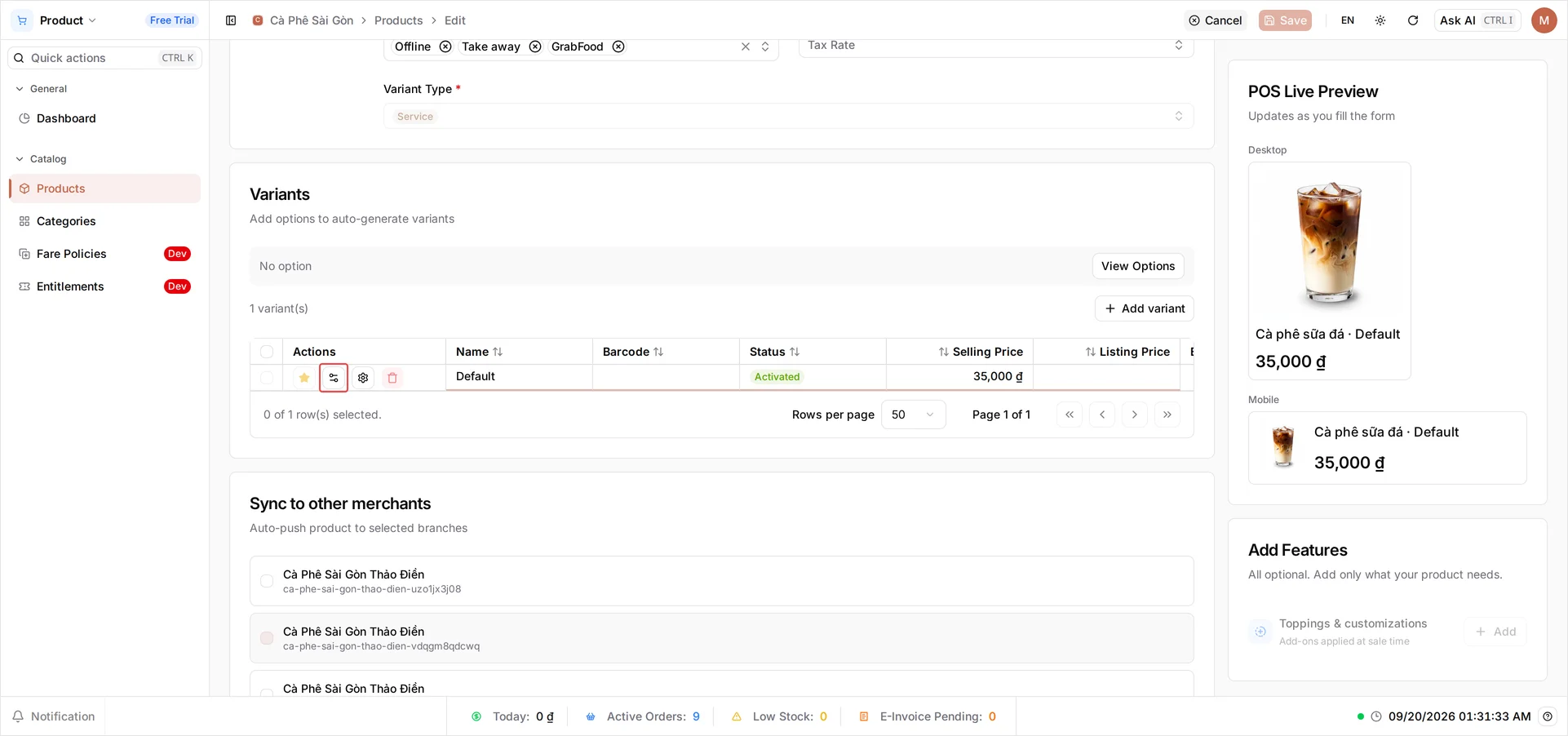
Once the product is saved, that price box on the form is locked. From then on you change the price in a Pricing Plan - a named set of prices you open from the variant’s Manage Pricing. A plan carries its own Default Price (the everyday amount it charges) and only takes effect once you switch it to Activated. Every variant has its own plans, so each size is priced, and changed, on its own.
Change a product’s price
When your costs move, you update the plan’s Default Price. Because the price box on the product form is read-only after saving, every price change happens in the Pricing Plan - not on the form.
Open the variant’s Pricing Plans
Open the product from Catalog → Products, scroll to its Variants, and on the variant row select Manage Pricing. (It appears only after the product is saved.) This opens the Pricing Plans screen for that variant.
Set the Default Price
Select a plan to edit it - or + to create one - give it a Name, and set the Default Price (Cà phê sữa đá is 35,000). A new plan starts Deactivated, so switch its status to Activated to put the price in use, then Save. The POS charges the new price on the next order; orders you’ve already taken keep the price they were rung up at. Every variant has its own plans, so repeat on another variant’s row to reprice it.
Charge a different price per channel
Need to charge more on delivery to cover an app’s commission - or less on a channel you want to push? In the same Pricing Plan, add a price group tied to a sale channel. The Default Price still applies everywhere else, and the POS picks the right one by the order’s channel. See Set a different price per sale channel.
Tax and your prices
The price you set is the amount the customer pays. VAT is configured separately on the product, not folded into the Default Price, and it appears on the invoices you issue - see Issue e-invoices. Keeping price and tax apart means you can change one without touching the other.
What’s next
- Selling one item several ways? Set up options and variants.
- See a price land on a real order - make your first sale.
You’re all set - your prices live in one place, ready to adjust whenever your costs do.
Frequently asked questions
I saved the product - why can't I edit the price on its form anymore?
Once a product is saved, the price box on the form becomes read-only. From then on the price lives in the variant's Pricing Plan, which you open with Manage Pricing. That keeps every price change - and any per-channel prices - in one place.
Do I have to activate a Pricing Plan?
Yes. A new plan starts Deactivated, so its price isn't used until you switch it to Activated. That lets you prepare a price ahead of time and turn it on when you're ready.
Can each size have its own price?
Yes. Every variant has its own Pricing Plans, so a large coffee can cost more than a small one. You set each variant's Default Price separately.
Will changing a price affect orders I've already taken?
No. A new price applies from the next order onward. Past orders, receipts, and reports keep the price the item was rung up at.
Does the price I enter include VAT?
The price is the amount the customer pays. VAT is configured separately on the product and shown on invoices, so you set the everyday price here and handle tax with e-invoicing.