Configure POS settings
Set the house rules your till runs on - shifts and cash counts, forgotten orders, and who signs off stock movements.
On this page
Your till needs house rules: whether staff clock on before they sell, how long an unpaid order keeps hold of its stock, and who is allowed to wave a delivery through. POS settings is where you set them once, for the whole store.
Cà Phê Sài Gòn now has Hùng on the counter and Lan running the floor, so Minh is no longer the only person touching the till or the stockroom. These are the settings that change when a business goes from one pair of hands to three.
Before you start
- Owner access to the store whose rules you are setting. Each store keeps its own.
- A sense of who does what - the roles you have already given your staff decide who these rules land on.
Open the settings
Open Settings → POS settings
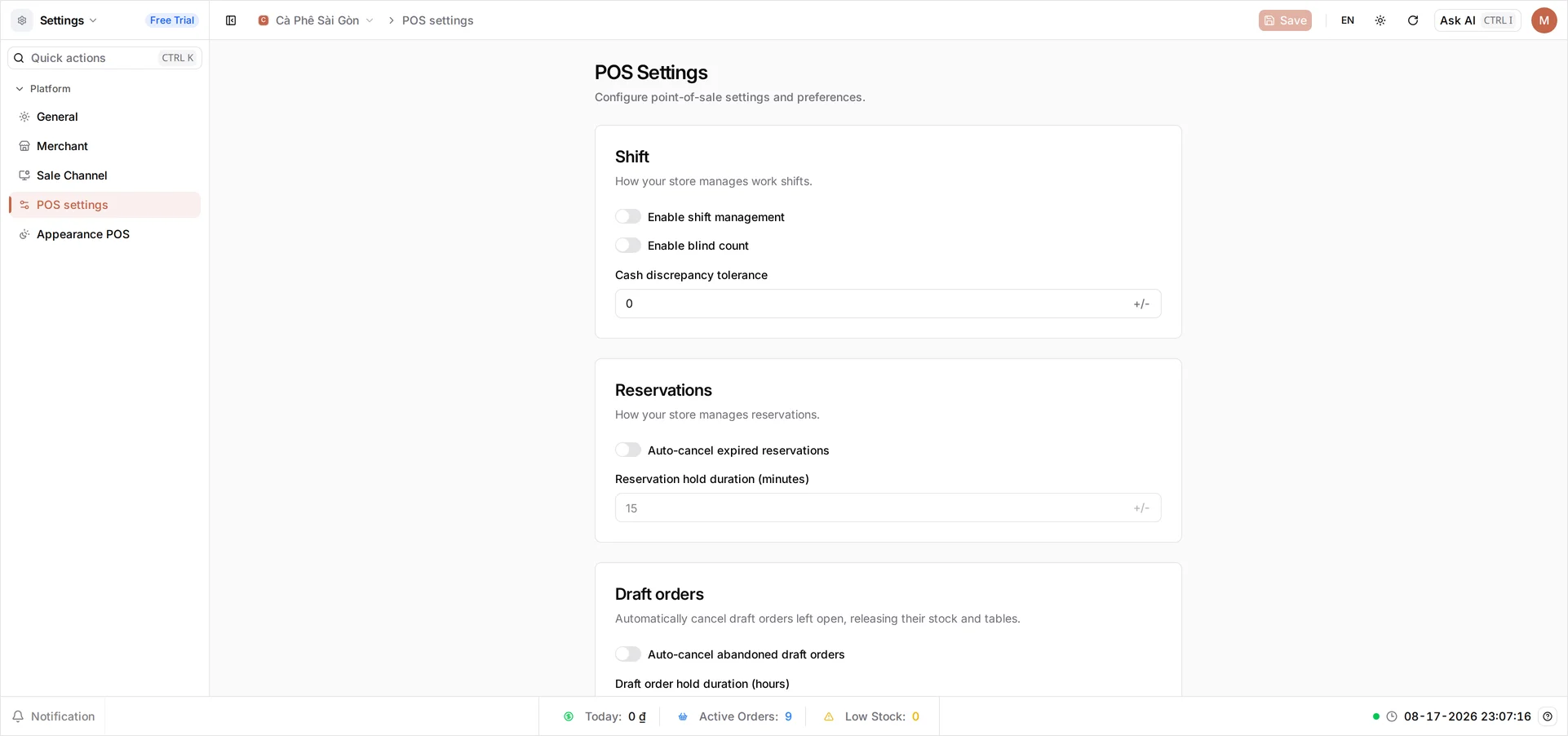
Sign in at client.bana.com.vn, then open Settings and POS settings - “configure point-of-sale settings and preferences”. Four cards run down the page: Shift, Reservations, Draft orders and Inventory ticket approval. Everything starts off, which is why a brand new store just sells.
Reservations only appears for a food and drink business, so you will see four cards or three depending on your trade. One Save at the top covers all of them, so work down the page and save once at the end.
Set your rules
Turn shifts on
A shift is a stretch of trading a cashier opens and closes at the till, counting the cash drawer at each end. Switch on Enable shift management and your staff must open one before they can sell - so a missing 50,000₫ belongs to a shift and a person, not to a whole day.
Two settings shape the count itself:
- Enable blind count hides the expected total while the cashier counts, so the number they enter is genuinely their own. BANA reveals the difference afterwards. Leave it off if you would rather they spot a miscount and recount on the spot.
- Cash discrepancy tolerance is how far a count may sit from the expected amount, in dong, before BANA stops the close and asks for a recount. It works in both directions - 20,000₫ over trips it just as 20,000₫ short does. Inside the tolerance the shift just closes; outside it, the cashier counts again or has to acknowledge the difference deliberately before BANA will let the shift close. It starts at 0, which means any difference at all stops the close, so this is a field to set rather than leave. Type it in dong with no separators -
10000for 10,000₫, enough to absorb a rounding slip while a real shortfall still stops someone.
Set how long a table is held
Cà Phê Sài Gòn sells over a counter and takes no bookings, so Minh sees this card but leaves its switch off. Down the road at Quán Nướng Sài Gòn, where guests phone ahead, it decides how long a booked table waits for a guest who has not arrived.
Switch on Auto-cancel expired reservations and the Reservation hold duration (minutes) field beside it comes to life - it stays greyed out until then. 15 minutes is a fair grace period: past it, the booking is cancelled by itself and the table goes back to the floor rather than standing empty all evening.
Release forgotten orders
An order a cashier starts and never takes payment for is a draft order, and it keeps holding what it reserved - stock, and a table if you have one. A few of those a week and your counts quietly stop matching the shelf.
Switch on Auto-cancel abandoned draft orders, then set Draft order hold duration (hours). 24 hours is the sensible default: anything still unpaid the next day was never a sale, so BANA cancels it and gives the stock and the table back.
Decide who approves stock movements
Stock does not move on its own - each movement is an inventory ticket, and a ticket only changes your counts once it is approved. Require approval for inventory tickets decides whether anyone has to look first. Left off, “every ticket is approved automatically as soon as it is submitted”.
Switch it on and a dropdown appears for each of the seven kinds - Purchase request, Stock in, Transfer, Internal use, Return to vendor, Return from customer and Scrap and disposal - so a delivery and a write-off need not answer to the same person. Each takes one of three modes:
| Mode | Who can approve |
|---|---|
| Automatic | No one needs to act - the system approves it at submission. Use it to exempt one kind of movement while others still need review; switching the master toggle off does this to every type at once. |
| Open | Anyone whose role carries the approval permission can approve - see Manage employees and roles. |
| Strict | Only a named assignee can approve. Permission alone is not enough. |
Set Scrap and disposal to Strict and a yellow warning appears: tickets of that type “will require at least one assignee when they are created”. That is the point - someone’s name is on every write-off. Leave the everyday ones on Open so a delivery is not stuck waiting for one person.
Then select Save in the top bar. One save covers every card on the page, and BANA confirms it. The rules take effect on the next shift, order and ticket - a shift already open, or a draft order already sitting there, keeps the rules it started under.
Your staff will meet the change at the till, not here: with shift management on, the POS asks them to open a shift before the sale screen will let them ring anything up.
Troubleshooting
- The Reservations card is missing: this store’s Industry is not Food & Beverage - the card only shows for F&B. Industry is chosen when the store is created and is locked afterwards, so a store set up under the wrong trade cannot be switched over here; see Manage your stores.
- A duration field is greyed out: switch on the toggle above it first. Both hold durations stay locked until their auto-cancel switch is on.
- Staff say they cannot sell: shift management is on and they have not opened a shift. They open one at the POS before ringing anything up.
- The per-type dropdowns disappeared: Require approval for inventory tickets was switched off, which puts every type back to automatic.
- A ticket cannot be approved by the person holding it: that type is on Strict, so only its assignee can approve. Switch the type to Open, or add them as an assignee on the ticket.
What’s next
The rules are set. Now put them in the hands they were written for:
Frequently asked questions
Do I have to turn shifts on?
No. With shift management off, staff simply open the POS and sell. Turn it on when more than one person works the till and you want a cash count at each handover, so a shortfall points at a shift instead of at a day.
Does a cashier see the expected cash total when counting?
Only if blind count is off. With blind count on they enter what is physically in the drawer and BANA shows the difference afterwards, which keeps the count honest. Leave it off if you would rather your staff catch and fix a miscount on the spot.
What does the cash discrepancy tolerance actually do?
It sets how far a closing count may sit from the expected amount before BANA refuses to close the shift and asks for a recount. Small change gets absorbed; a genuine shortfall has to be counted again or acknowledged on purpose.
Will auto-cancelling draft orders delete a real sale?
No. It only touches orders that were never paid for. Cancelling one releases the stock - and the table, in a restaurant - that the order was holding. Completed orders are never affected.
Which approval mode should I start with?
Leave the approval switch off while you are the only person touching stock. Turn it on and use Open once someone else receives deliveries, so anyone with the permission can approve. Save Strict for the tickets you want a named person answerable for, like write-offs.